The Property bar is one of the most useful of the CorelDRAW's default toolbars; it contains the most commonly used functions that are relevant to the active tool or to the task you’re performing. The Property bar is not a toolbar; when you start the CorelDraw the Property bar displays informations regarding the current document; as you continue to work, the Property bar content changes depending on the active tool (or the performed task).
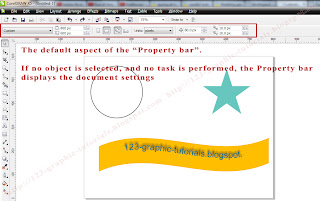
When no object is selected and no task is performed, the Property bar display the current document settings.
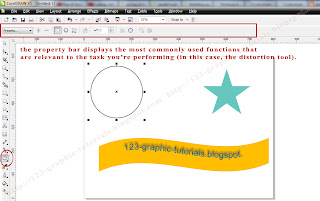
In the image above the Distortion tool is selected. The Property bar displays various distortion commands and options.
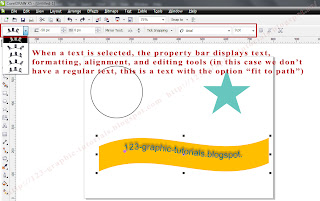
In the image above a text aligned to a path is selected. The Property bar displays various commands and options which can help you to edit the text or to set / edit the text alignment.
If you need it, you can customize the Property bar: you can dock / undock it, move it anywhere on the screen, modify it's appearance, and you can also set up a custom property bar by adding, removing, and rearranging toolbar items. If you want to change the bar's appearance go to the main menu, choose Tools -> Customization -> Command Bars and click on the Property bar. Now you can change the size of the buttons, the bar's border, the buttons appearance, etc.
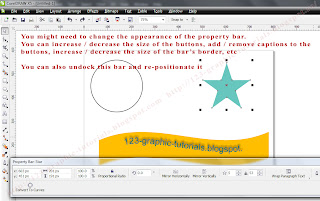
In the image above the Property bar is floating in the lower side of the screen. Use the grab area to dock/undock/move the Property bar. Place it inside the application window if you need a floating property bar. Place it on any of the four sides of the application window if you want to dock it (to make it part of the window border).
If you (really) need to you can set up a custom property bar by adding, removing and rearranging the toolbar items. Go to main menu, choose Tools -> Customization -> and click on Commands. Choose an item from the commands list and drag it to the Property bar (see the image below, where the "Insert page before" is added to the Property bar). The new item will be included in the Property bar of the active tool or task (if you change the active tool, the new item will not be displayed in the Property bar; when the related tool will be activated, the new item will become visible again). If you want to remove an item from the property bar, drag the toolbar item icon off the property bar. Important: it is not a good idea to change the default items of the Property bar.

If you want to, you can add or remove items on / from the Property bar or you can customize a Property bar by rearranging the items.

When no object is selected and no task is performed, the Property bar display the current document settings.

In the image above the Distortion tool is selected. The Property bar displays various distortion commands and options.

In the image above a text aligned to a path is selected. The Property bar displays various commands and options which can help you to edit the text or to set / edit the text alignment.
If you need it, you can customize the Property bar: you can dock / undock it, move it anywhere on the screen, modify it's appearance, and you can also set up a custom property bar by adding, removing, and rearranging toolbar items. If you want to change the bar's appearance go to the main menu, choose Tools -> Customization -> Command Bars and click on the Property bar. Now you can change the size of the buttons, the bar's border, the buttons appearance, etc.

In the image above the Property bar is floating in the lower side of the screen. Use the grab area to dock/undock/move the Property bar. Place it inside the application window if you need a floating property bar. Place it on any of the four sides of the application window if you want to dock it (to make it part of the window border).
If you (really) need to you can set up a custom property bar by adding, removing and rearranging the toolbar items. Go to main menu, choose Tools -> Customization -> and click on Commands. Choose an item from the commands list and drag it to the Property bar (see the image below, where the "Insert page before" is added to the Property bar). The new item will be included in the Property bar of the active tool or task (if you change the active tool, the new item will not be displayed in the Property bar; when the related tool will be activated, the new item will become visible again). If you want to remove an item from the property bar, drag the toolbar item icon off the property bar. Important: it is not a good idea to change the default items of the Property bar.

If you want to, you can add or remove items on / from the Property bar or you can customize a Property bar by rearranging the items.


